How to create a Email Template
To create an Email template, follow these steps:
1. Navigate to the menu option located on the left side of the home screen.
2. Choose "Design System" and select "Email" from the dropdown menu.
3. Hover over the "Email" button and click on the plus icon.
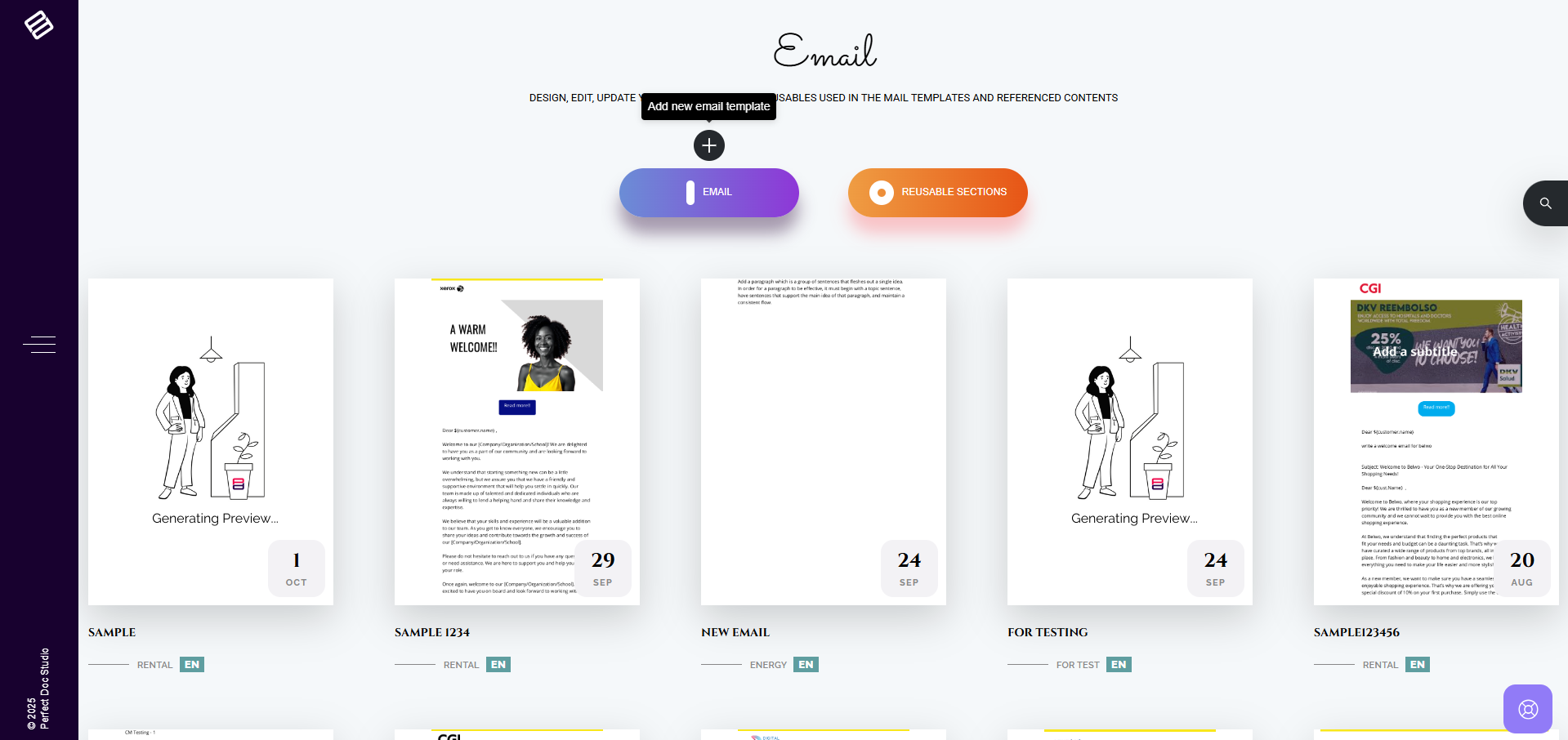
4. A model will appear to create a new Email template.
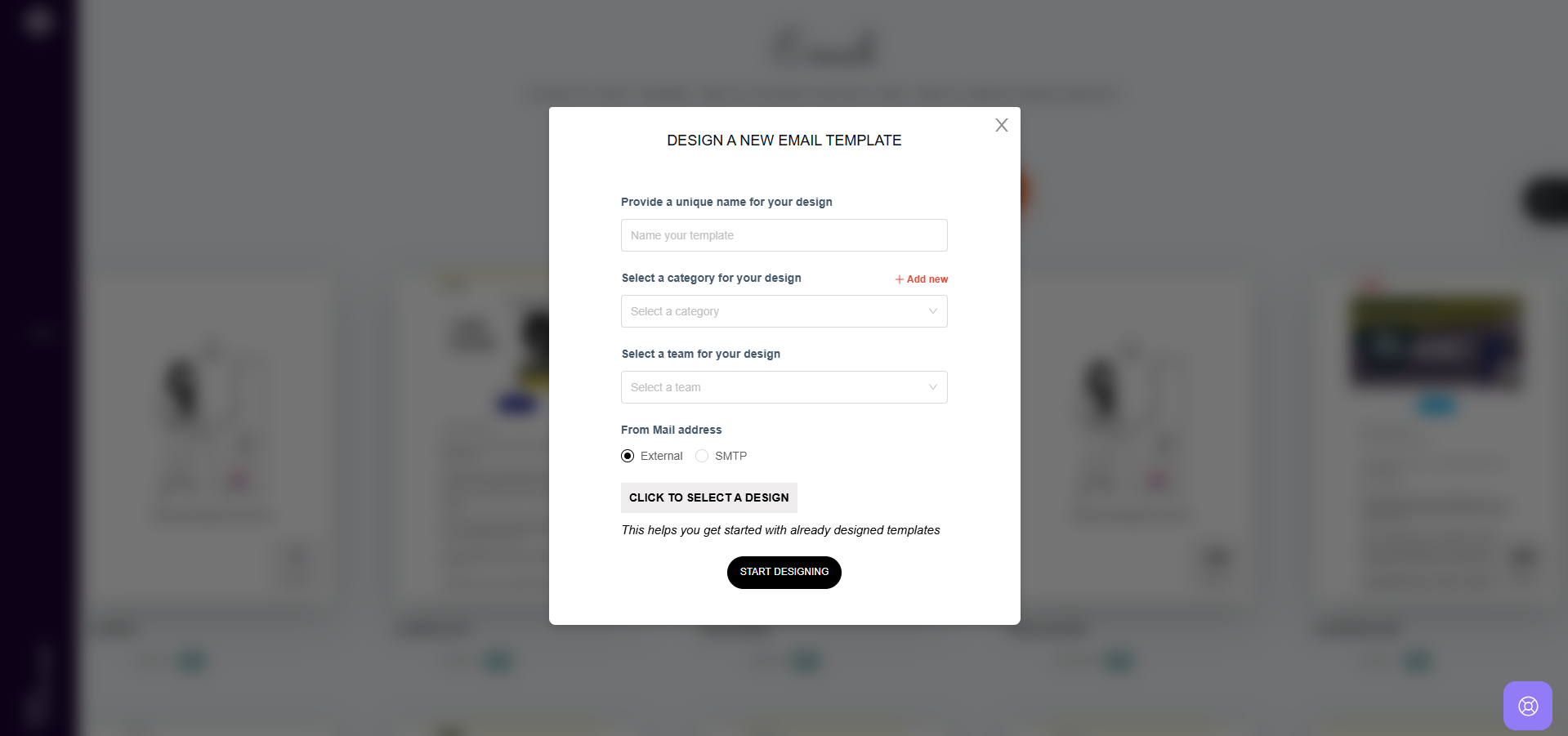
5. Provide a distinctive name for the Email template.
6. Select an existing category or create a new one for the template.
7. Select the team for the template.
8. You can set the from address in two ways, External or SMTP.
External: Uses the default configured external mail gateway set up in Perfect Doc Studio.
SMTP: Uses a configured SMTP server if you want to send from a custom mail server.
9. Using "Click to Select a Design" button you can choose a predesigned template from the Master Template library of Perfect Doc Studio.
10. If you want to create a fresh design, you can skip that button and click on Start Designing.
VIDEO DEMO:
Related Articles
Organizing Email Templates into folders
Folders serve as a space where each team / user can store their Email designs in distinct folders and arrange them systematically. For creating a folder, follow these steps: 1. Navigate to the Folders option located in the left-hand side menu and ...Deleting an Email Template
To delete an email template, follow these steps: 1. Go to the Emails page. 2. Hover over the email template you wish to delete. 3. Click on the three-dotted icon located in the top-right corner of the template. 4. Select the "Delete" option from the ...Adding Images to the Email Template
Upload your image to the system before adding it to your email template. 1. In the Let's Design area, drag and drop a Graphic Image block into your design. 2. Go to the Uploads section from the left-hand side menu. 3. Click on the Upload Images ...Email Settings
Send Email From: This field specifies the email ID that recipients will see as the sender when they receive emails from the system. Manage Tags: Similar to the document system, the "Manage Tags" feature allows you to associate specific keywords with ...What is Channel Mapping?
If a user needs to share common information with a specific group of people via printed PDFs, emails, and short messages, there’s no need to create separate templates for each module. Instead, they can create a single document template and link email ...