Creating Rule-Driven Documents Based on Business Logic : Element and Flow level
Applying Element-Level Business Logic
Users can apply business logic directly to individual elements or group multiple elements together and apply the logic collectively.
Users can apply business logic directly to individual elements or group multiple elements together and apply the logic collectively.
Grouping Elements:
1. Select the elements you want to group:
2. Hold the Shift key and click on each element, or Drag over the area containing the elements to select them.
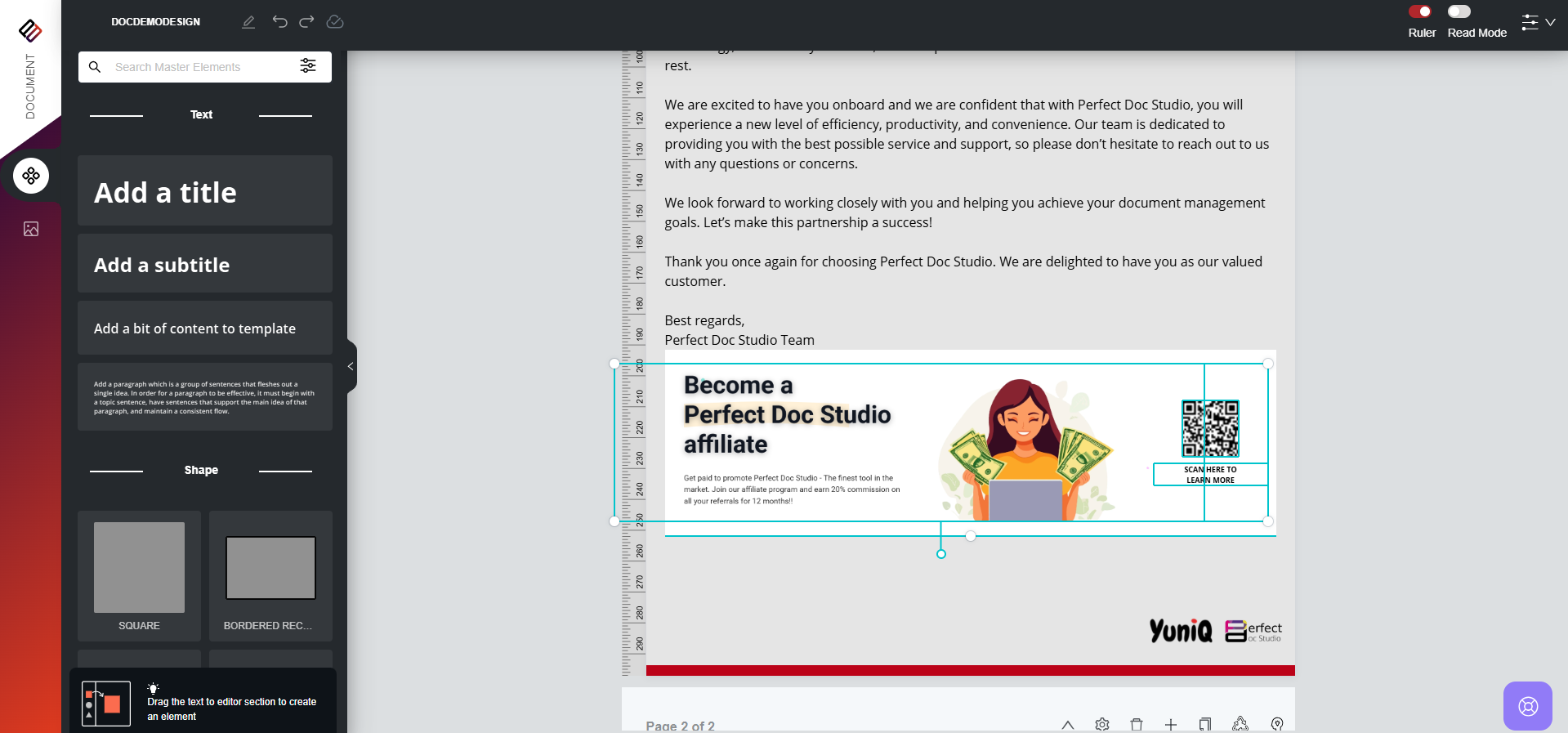
2. Hold the Shift key and click on each element, or Drag over the area containing the elements to select them.
3. Right-click on the selected elements to view the available options: Group and Add Business Logic.
4. Click Group. A modal window will appear prompting you to provide a name for the grouped elements.
5. Enter a name and save. The selected elements will now be grouped.
Once the elements are grouped, follow these steps to apply business logic:
1. Select the grouped element and right-click on it.
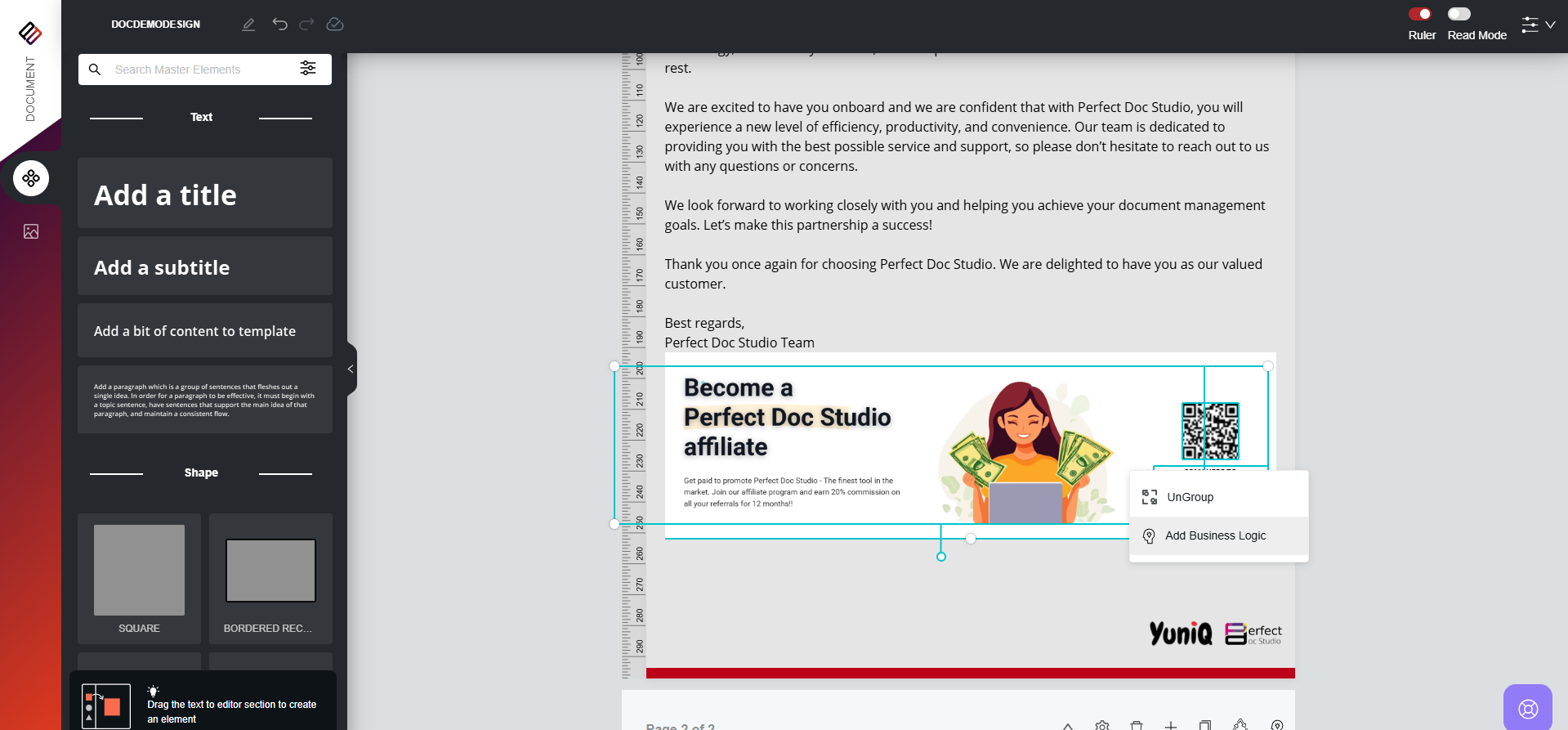
2. Click on the Business Logic option. A modal will open to configure logic for the grouped elements.
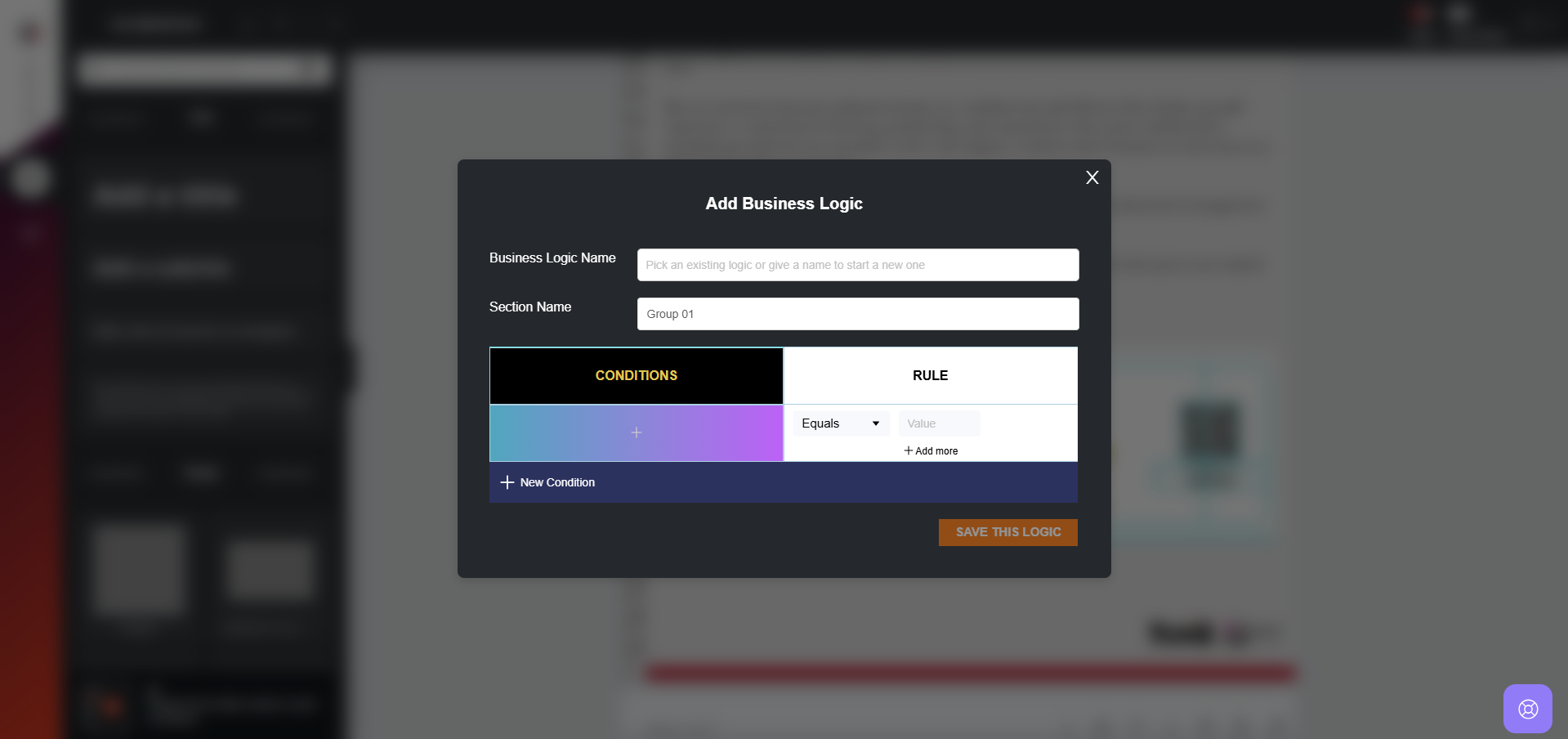
2. Click on the Business Logic option. A modal will open to configure logic for the grouped elements.
3. If business logic has already been defined elsewhere in the document, you can select it here. Otherwise, you can create and apply a new logic.
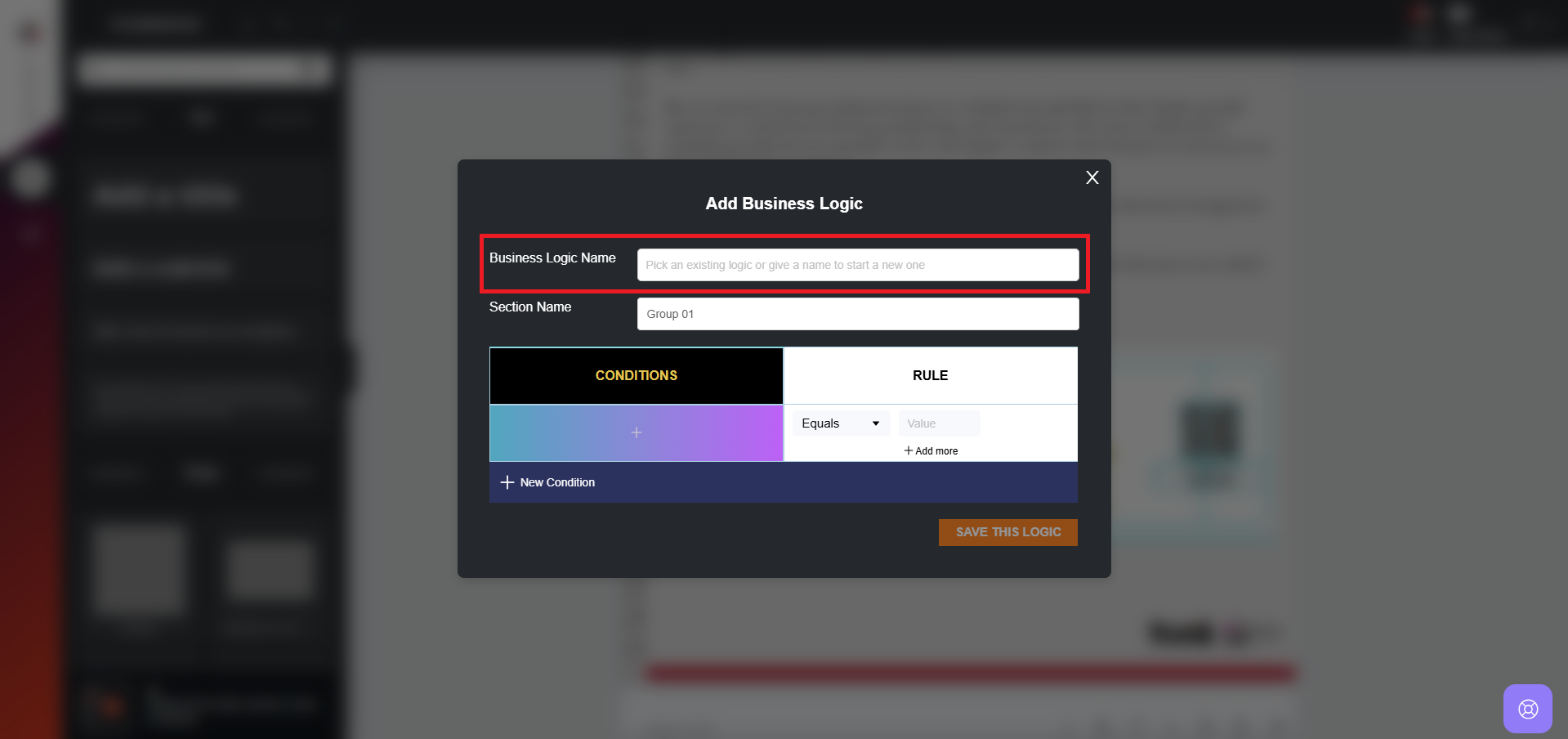
4. The Section Name shown in the modal corresponds to the group name you assigned while grouping the elements.
5. Choose a variable for the element group and assign the required logic.
Note: At the element level, only a single rule can be applied. In contrast, block-level business logic supports multiple rules for the same block.
6. Click Apply this Logic. The business logic is now applied to the grouped elements.
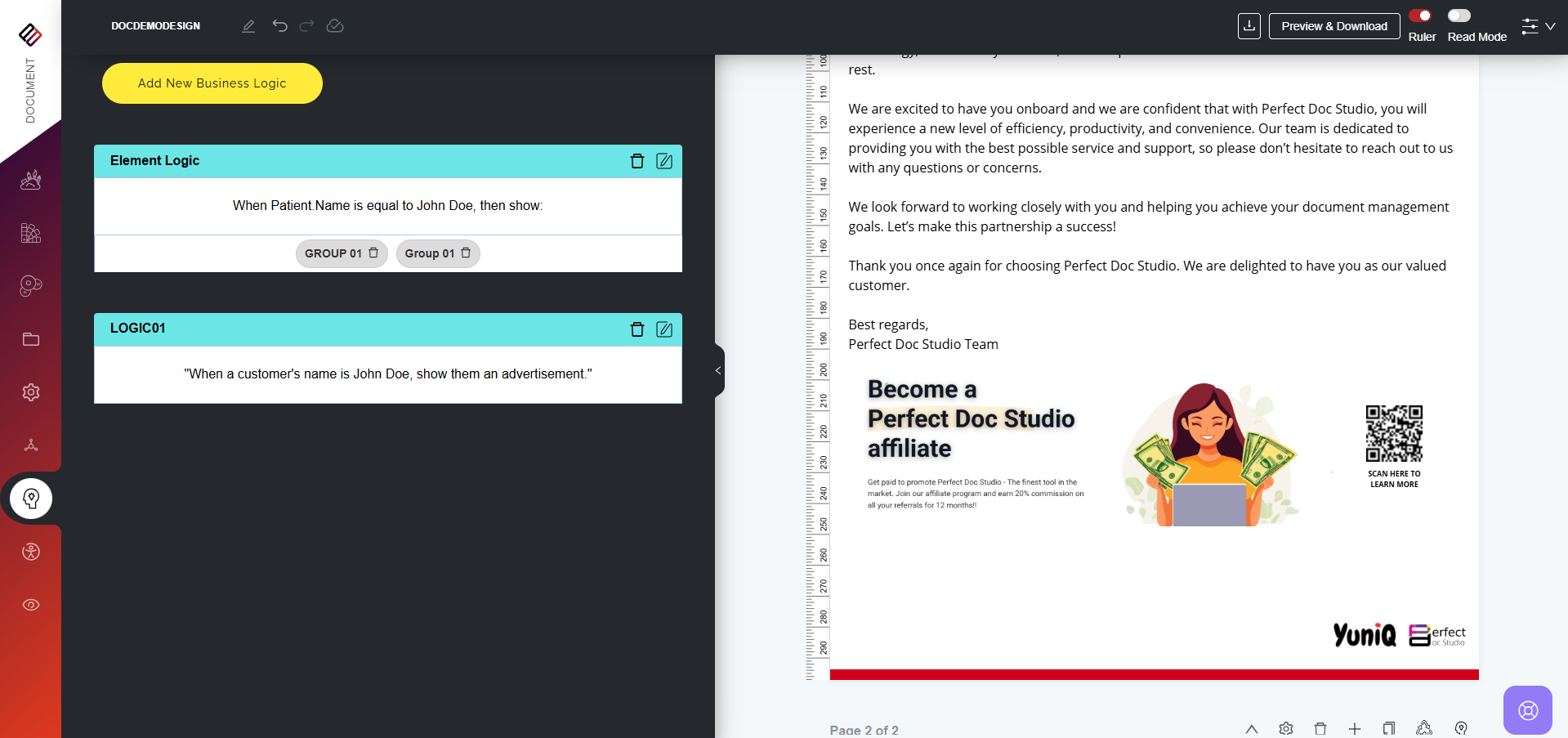
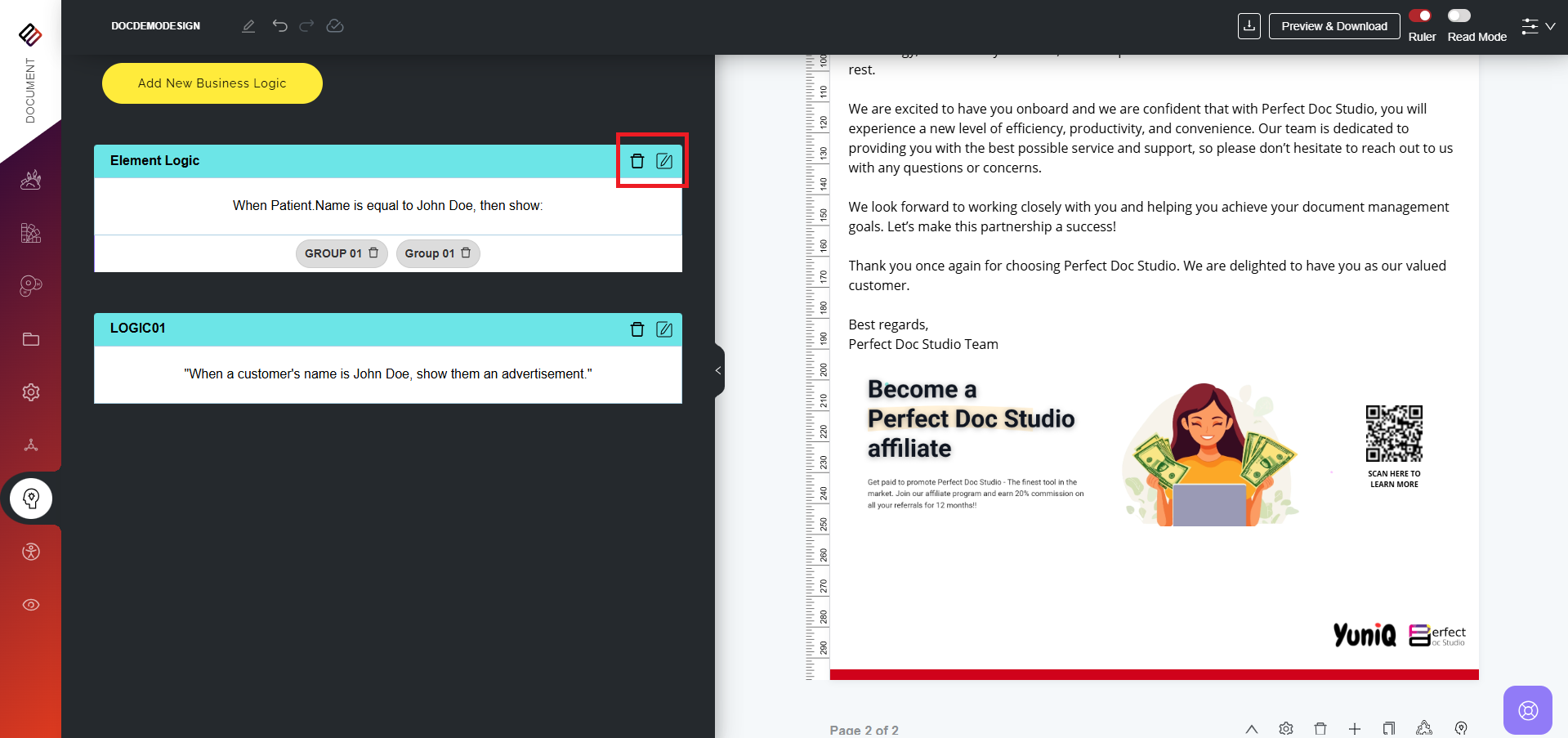
7. Users can edit or delete business logic from the Preview and Download section.

When applying business logic to a single element, the same steps are followed. However, you will need to manually provide a Section Name for that element, since the system does not automatically generate one as it does for grouped elements.
Applying Flow-Level Element Logic
Business logic can also be applied to an entire flow. To do this, follow the steps below:
1. On the top-right corner of the page, click the Add Business Logic button.
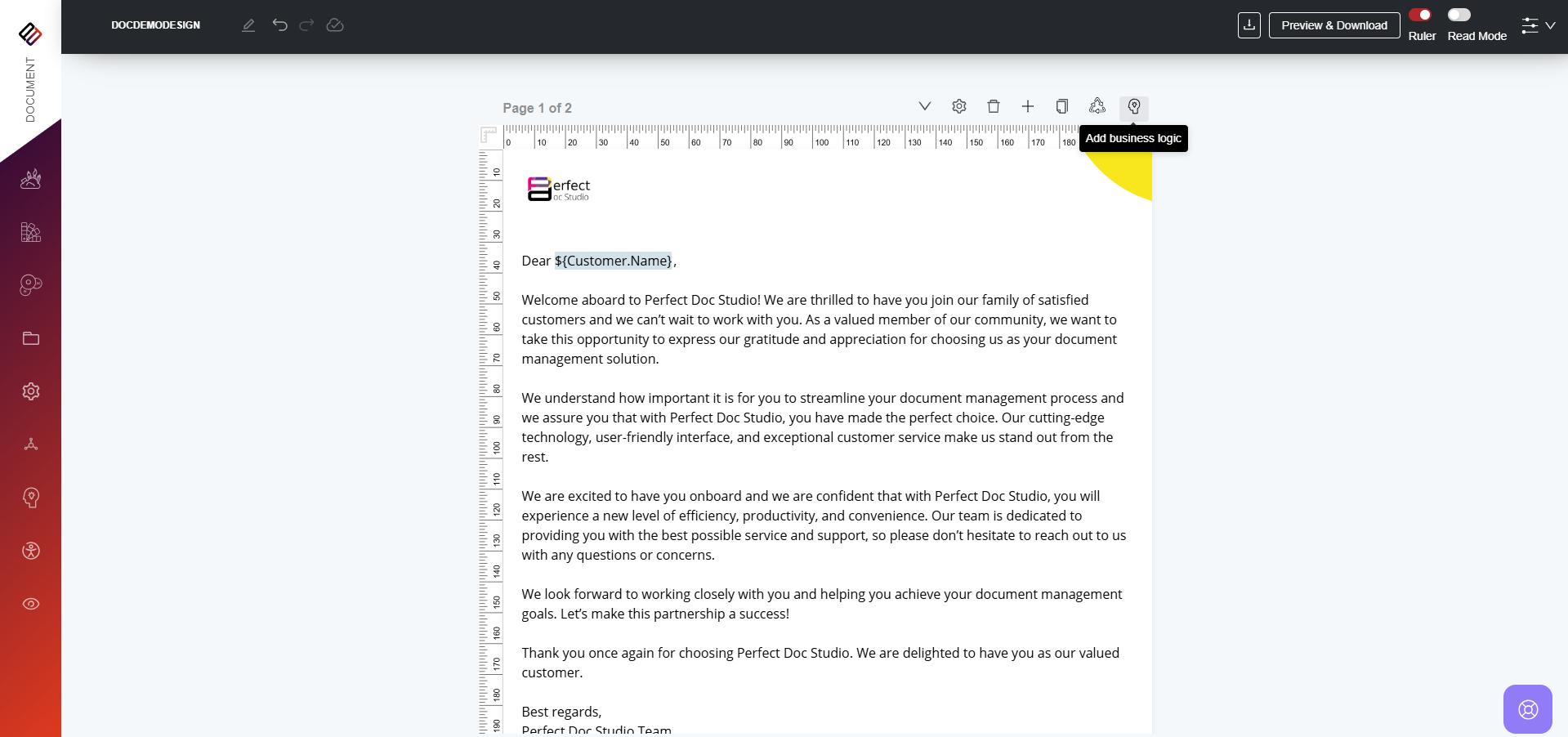
2. A modal window will appear for configuring the logic.
3. Select a variable and define the necessary logic.
4. Click Save Logic. The business logic will now be applied to the entire flow.
VIDEO DEMO:
Related Articles
Creating Rule-Driven Documents Based on Business Logic : Block Level
Applying Block Level Business logic: Naming the section: In the document structure, each section is regarded as a block. Therefore, prior to applying any rules to a particular section, it is essential to assign a name to that section. Hover over the ...What is Business Logic?
Business Logic refers to the set of rules and conditions that determine how information is displayed, structured, or processed within a document. Instead of generating static, one-size-fits-all communications, business logic allows documents to adapt ...Condition Types and How to Add or Remove Business Logic
Condition types: Match First: Enabling this option will display the section based on the first rule that matches, disregarding subsequent rules. Match Last: This option matches with all sections and displays the section that matches the last. For ...How to add Element-Level Summaries to Your Document?
Users can add element-level summaries for all master elements in the system, such as charts, shapes, lines, tables, and barcodes. Providing descriptive summaries helps screen readers interpret and read complex design documents more effectively. How ...Organizing Documents into Folders
Folders serve as a space where each team / user can store their Document designs in distinct folders and arrange them systematically. For creating a folder, follow these steps: 1. Navigate to the Folders option located in the left-hand side menu and ...