How to add Element-Level Summaries to Your Document?
Users can add element-level summaries for all master elements in the system, such as charts, shapes, lines, tables, and barcodes. Providing descriptive summaries helps screen readers interpret and read complex design documents more effectively.
How to Add Summaries for Master Elements
1. Insert a master element into your document. An Accessibility icon will appear at the top of the element.
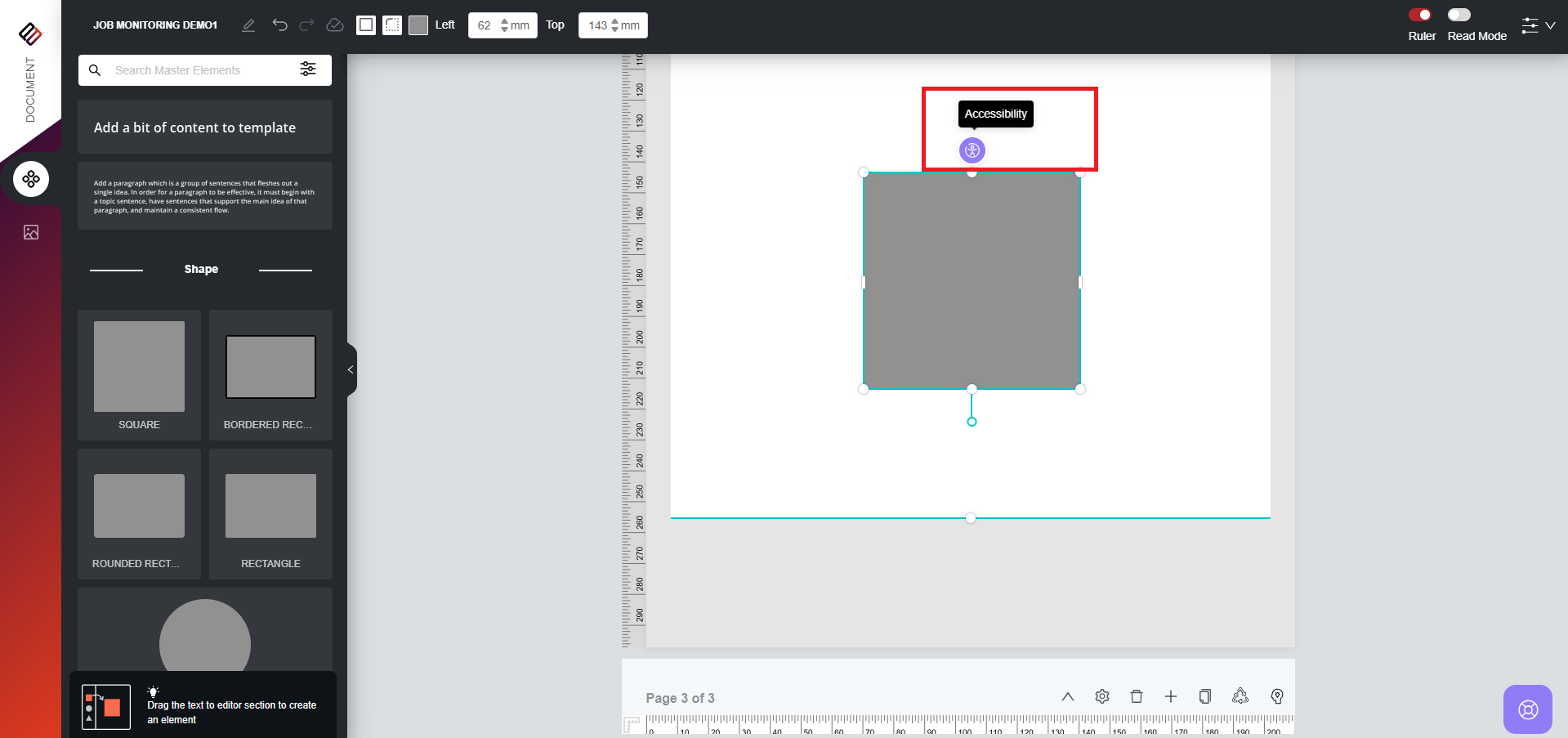
2. Click the icon to open a modal window.
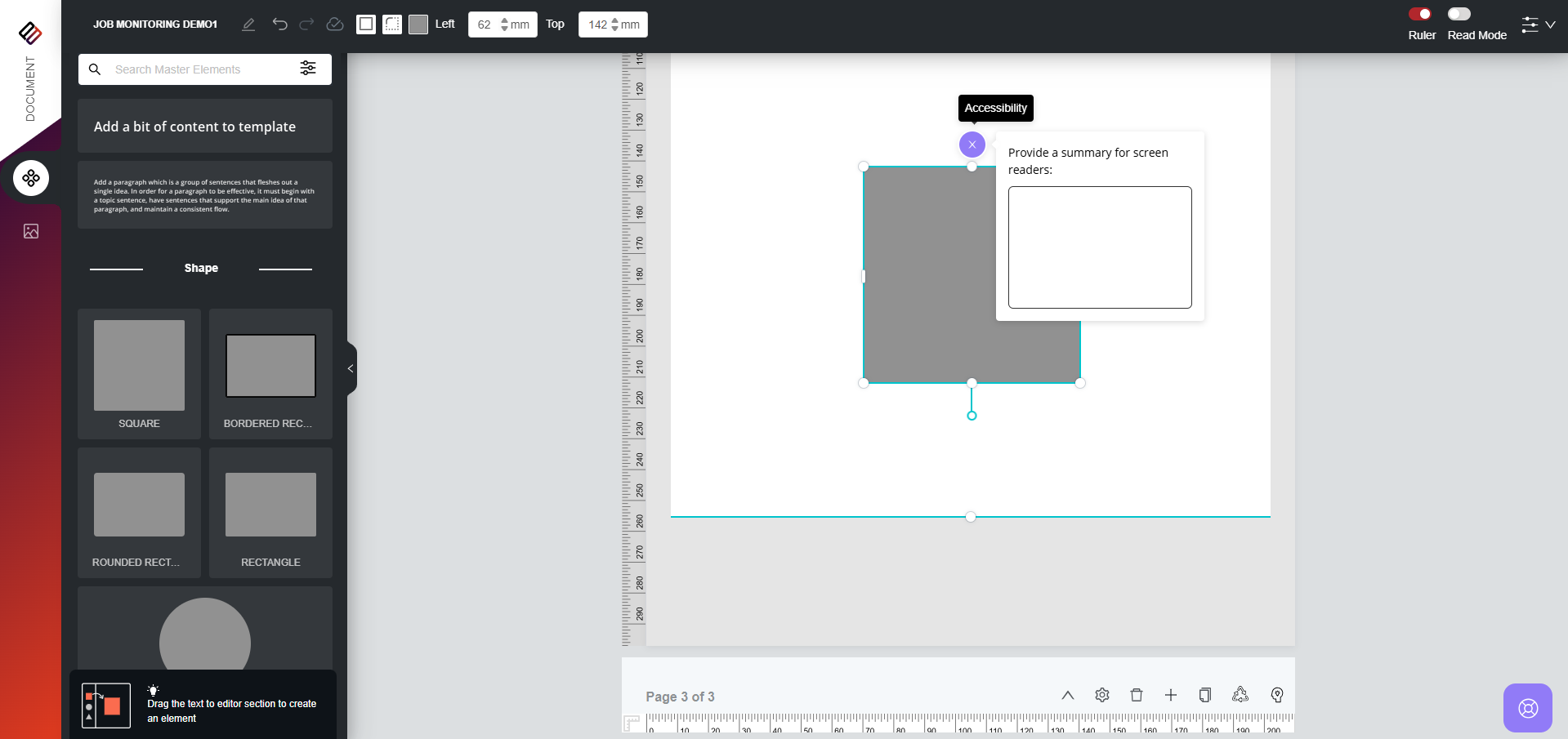
3. Enter a descriptive summary for the element and click Save.
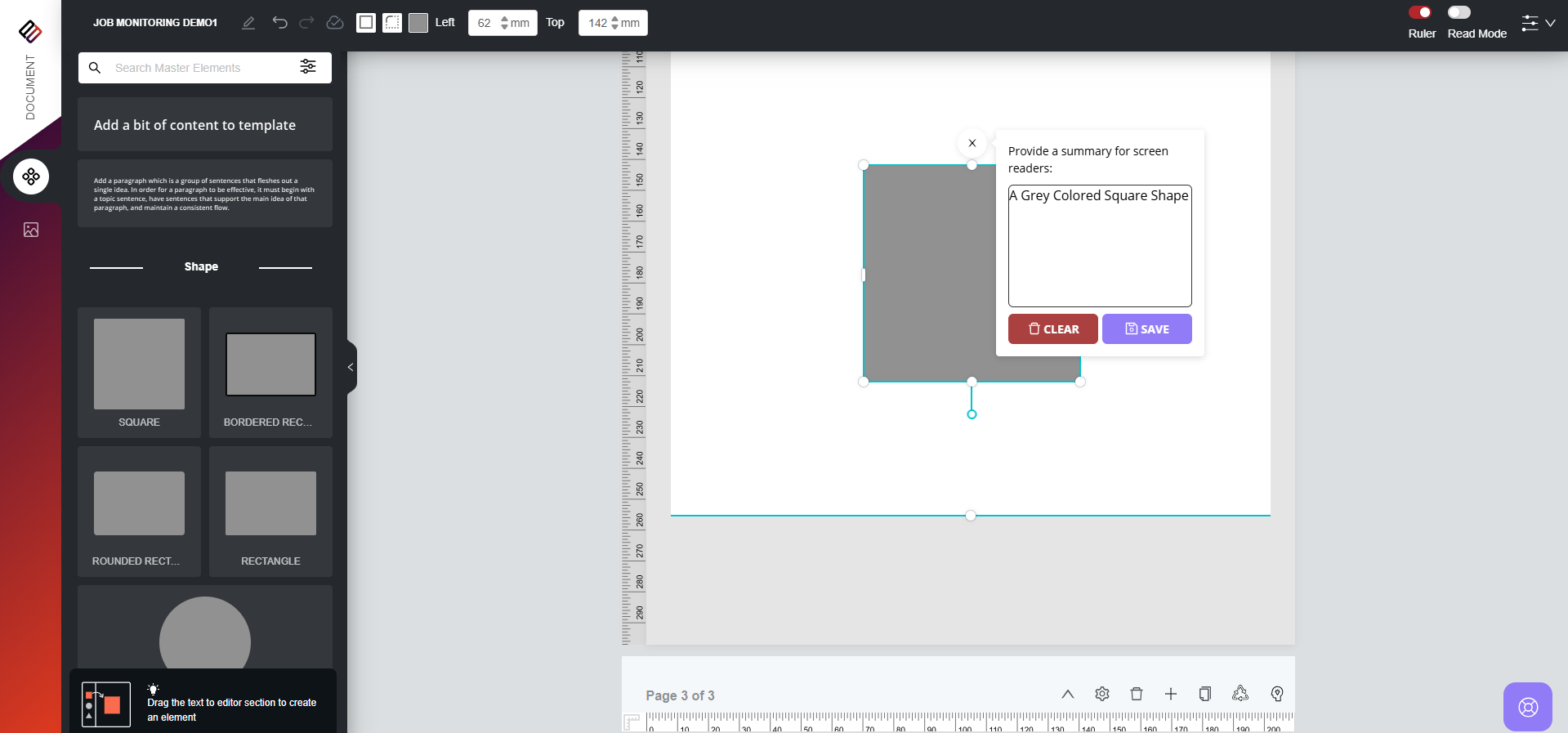
4. The summary will be saved and can be reviewed from the Accessibility Preview section.
1. Insert a master element into your document. An Accessibility icon will appear at the top of the element.
2. Click the icon to open a modal window.
3. Enter a descriptive summary for the element and click Save.
4. The summary will be saved and can be reviewed from the Accessibility Preview section.
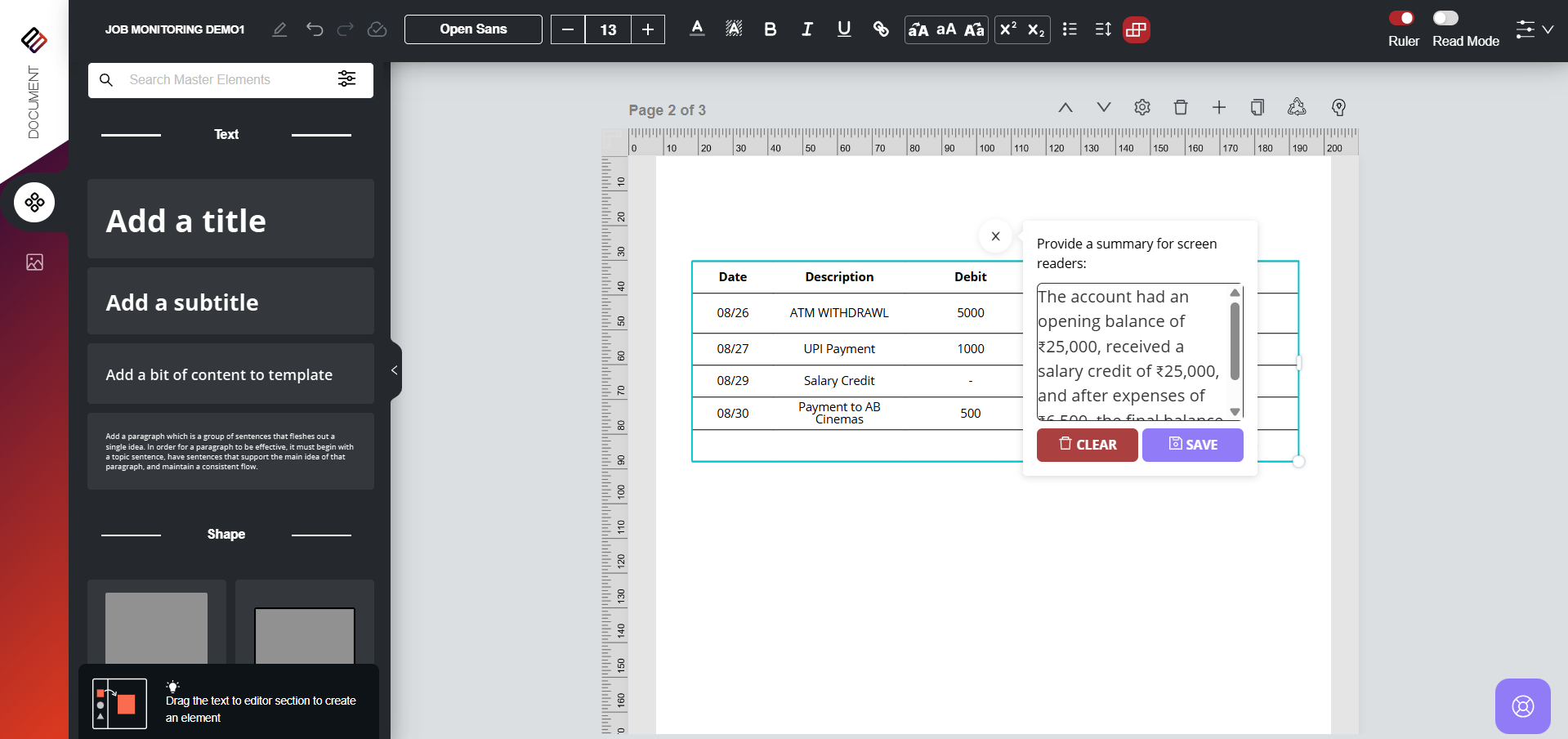
For example let us say we have a static table in our document as shown below:
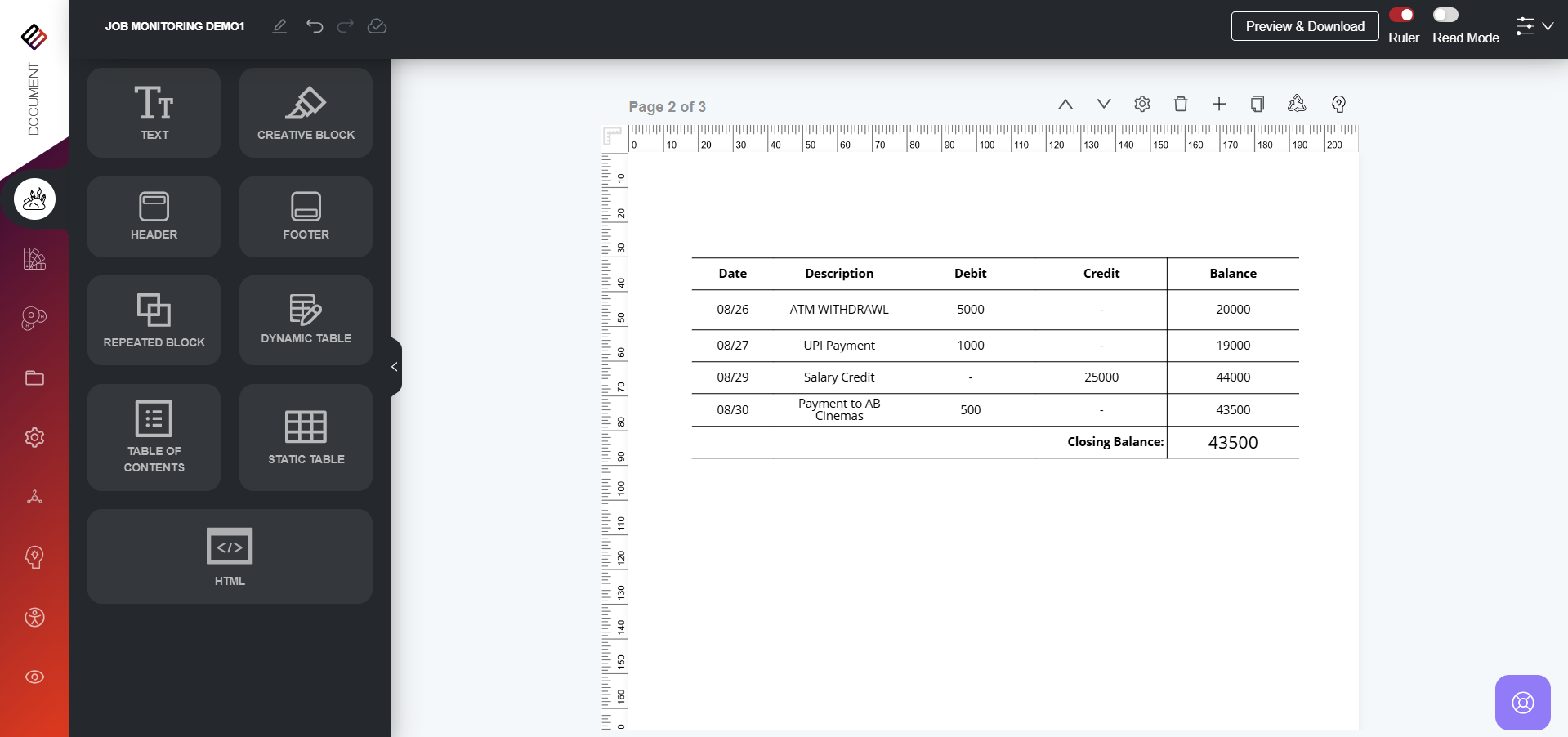
The description is provided as: The account had an opening balance of ₹25,000, received a salary credit of ₹25,000, and after expenses of ₹6,500, the final balance stands at ₹43,500.
The description is provided as: The account had an opening balance of ₹25,000, received a salary credit of ₹25,000, and after expenses of ₹6,500, the final balance stands at ₹43,500.
For tables, instead of reading each row individually, the screen reader will read the description provided for the table. This allows users to quickly understand its purpose and meaning. The same functionality applies to other master elements such as barcodes, shapes, charts, and lines.
VIDEO DEMO:
Related Articles
How to add Block-Level Summaries to your Document?
Users can add block-level summaries to any block in the design area, such as creative blocks, dynamic tables, static tables, headers, and footers. These summaries help screen readers clearly convey the purpose of each block, making the content easier ...How to make your Document Truly Accessible using Perfect Doc Studio?
Before making a document accessible, users must first enable the Accessibility option in the Document Settings section. Without enabling this option, the accessible design features will not be available. Once enabled, users can make their documents ...Creating Rule-Driven Documents Based on Business Logic : Element and Flow level
Applying Element-Level Business Logic Users can apply business logic directly to individual elements or group multiple elements together and apply the logic collectively. Grouping Elements: 1. Select the elements you want to group: 2. Hold the Shift ...How Does the Accessibility Validator Work?
The Accessibility Validator provides a score that indicates how accessible your document is for all users. This score reflects the overall accessibility level and highlights specific sections that may not meet accessibility standards. Along with the ...Creating Rule-Driven Documents Based on Business Logic : Block Level
Applying Block Level Business logic: Naming the section: In the document structure, each section is regarded as a block. Therefore, prior to applying any rules to a particular section, it is essential to assign a name to that section. Hover over the ...